How to view confirmed bookings and submit a room request on the public calendar.
1. Overview
The public calendar shows approved room bookings at Wokingham Theatre. Pending requests are not shown until staff approve them.
Use the top navigation:
Calendar — browse availability.
Rotas — volunteer sign-up for Tech and Front of House (when released).
Guide — this page.
Admin — staff sign-in only.
Need to book a room? When the theatre is accepting online requests, open the Request a booking tab on the calendar home page. If that tab is not shown, use the theatre’s usual booking channels — the home page will still show confirmed bookings and a link to volunteer rotas.
2. Viewing the Calendar
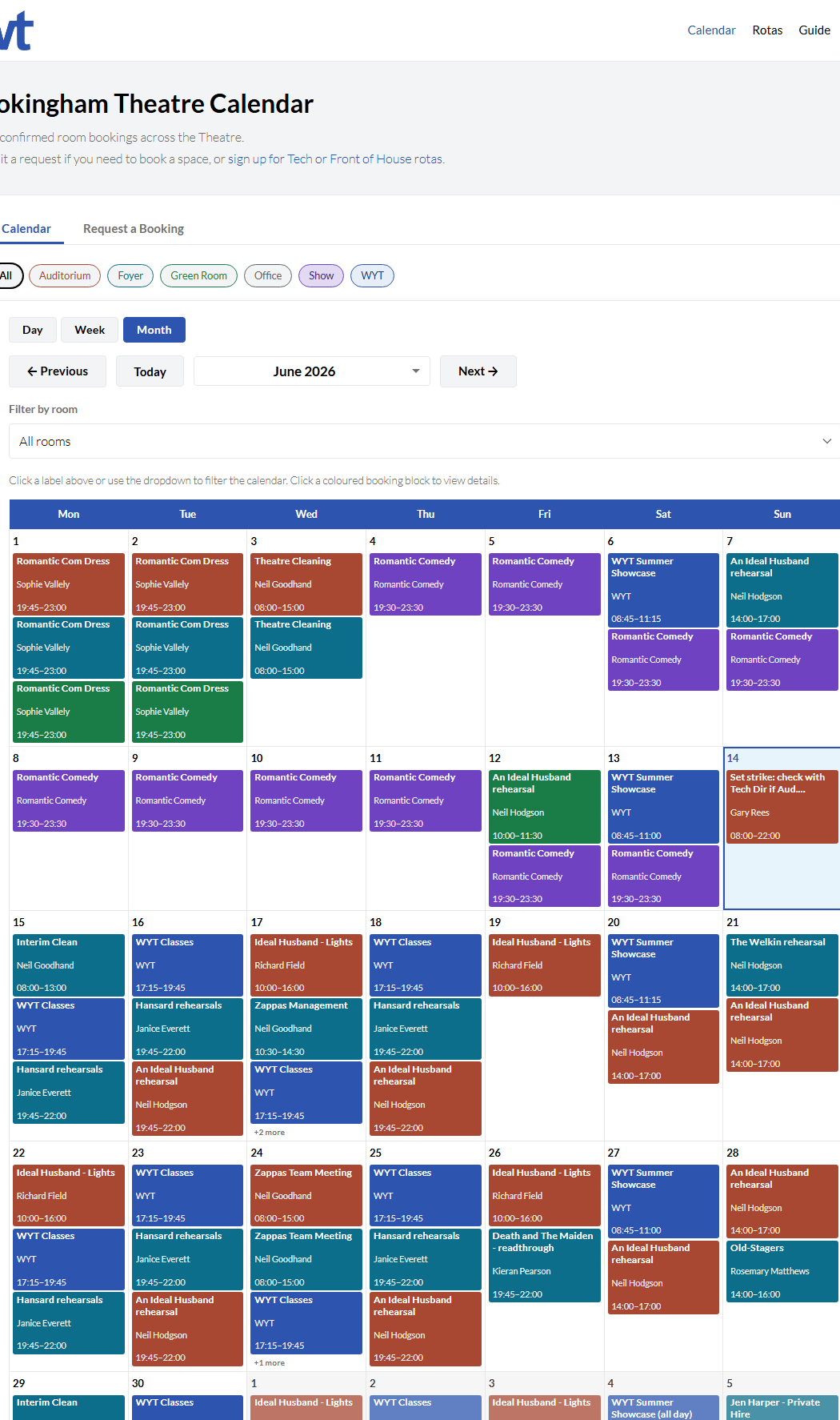
On the Calendar tab, switch between Day, Week, and Month views.
Today jumps to the current day, week, or month.
Previous / Next move backward or forward in time.
Click a coloured room label above the calendar to filter (click again for all rooms).
Use Filter by room for the same filter in a dropdown.
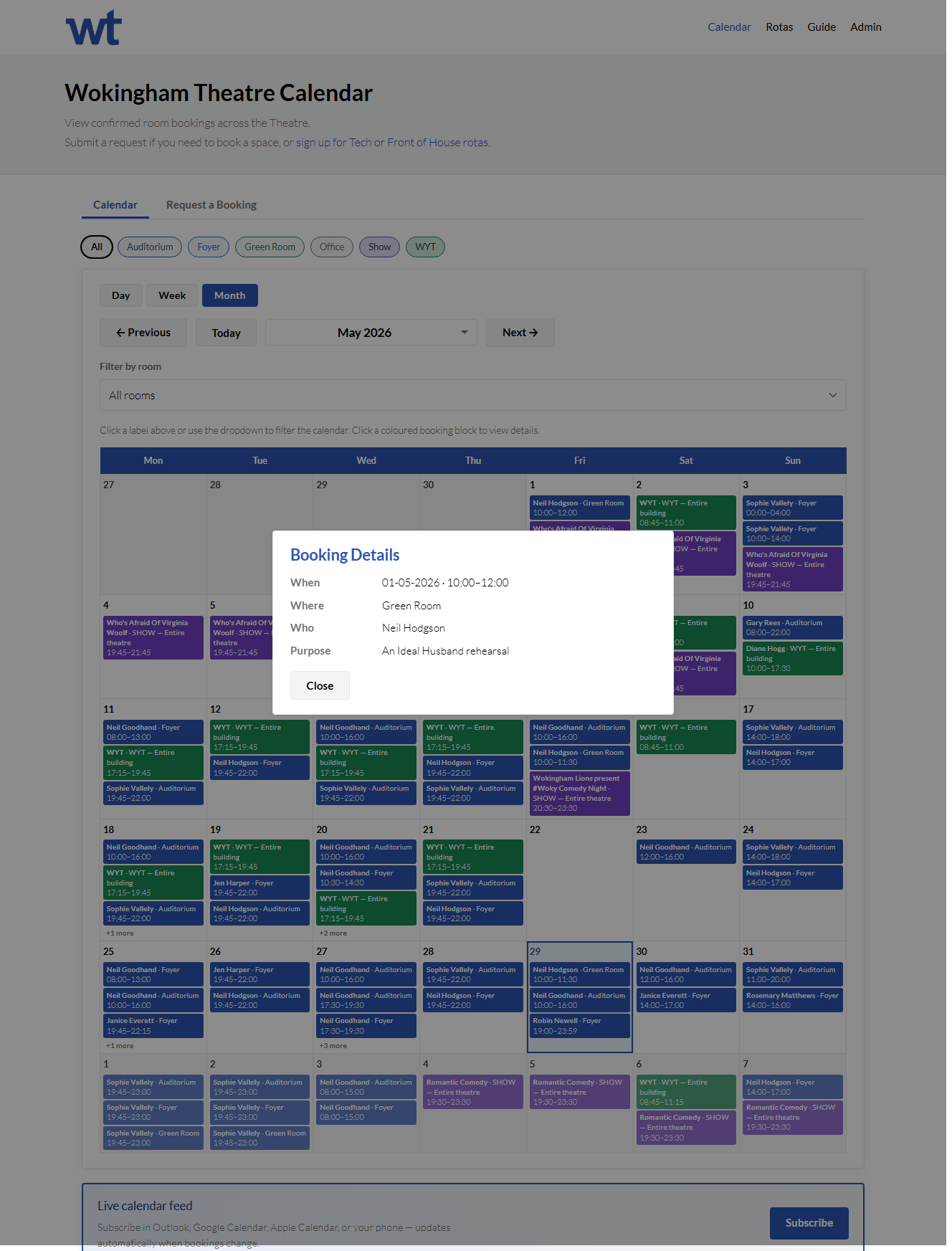
Click a coloured booking bubble to view full details.
Calendar colours
Each room and theatre block has its own colour on the calendar and on the filter pills. The colour identifies the space — you do not need the room name on every bubble.
Colour
Meaning
Rust · Auditorium
Bookings in the main auditorium
Teal · Foyer
Bookings in the foyer
Green · Green Room
Bookings in the green room
Slate grey · Office
Bookings in the office
Purple · Show
Entire-theatre show run (evenings and matinees)
Blue · WYT
Whole-building Wokingham Youth Theatre block
Each bubble shows the purpose (or event name) in bold — up to two lines — then the booker and time when both are set. Hover for a short summary; click for full details.
Public calendar month view with room filters and view buttons.
Month view — coloured bubbles and room filter pills.
Booking details dialog.
Booking details when you click an event.
3. Live Calendar Feed
Below the calendar, Live calendar feed lets you subscribe in Outlook, Google Calendar, Apple Calendar, or on your phone. The feed updates when bookings change.
Tap or click Subscribe and follow your app’s prompts. Only confirmed (approved) bookings appear, same as on the website.
4. Request a Booking
When room booking requests are enabled, open the Request a booking tab on the home page. You submit a request, not an instant booking — staff review it before it appears on the public calendar. If the tab is missing, the home page still shows the calendar and: You can sign up for Tech or Front of House rotas here. (with here linking to the rotas page).
Home page with calendar tab only and a link to volunteer rotas.
Example when staff have turned off public booking requests.
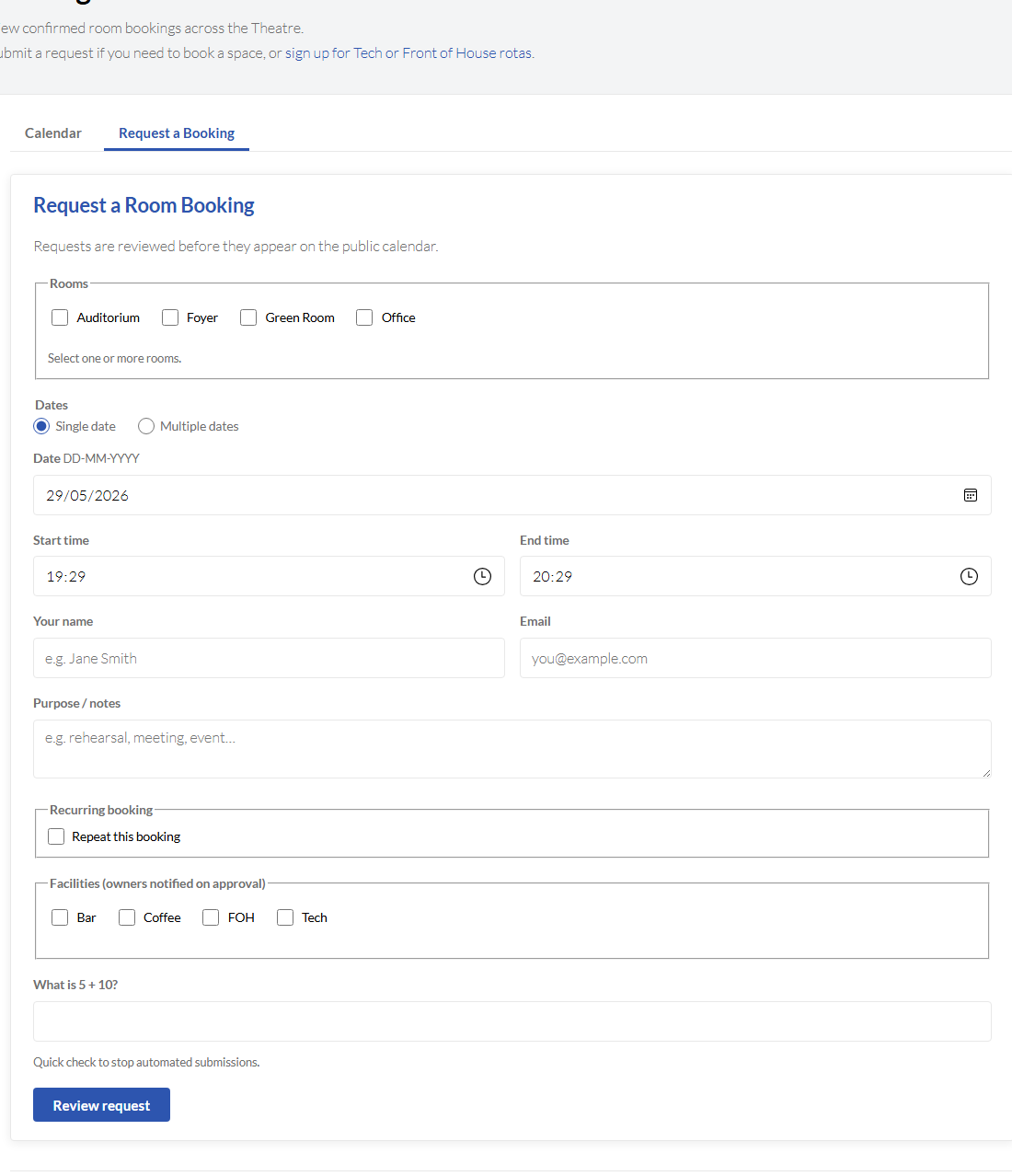
Select one or more rooms.
Choose a single date or multiple dates (mini calendar → Add selected dates).
Set start and end times.
Enter your name and email.
Add purpose / notes.
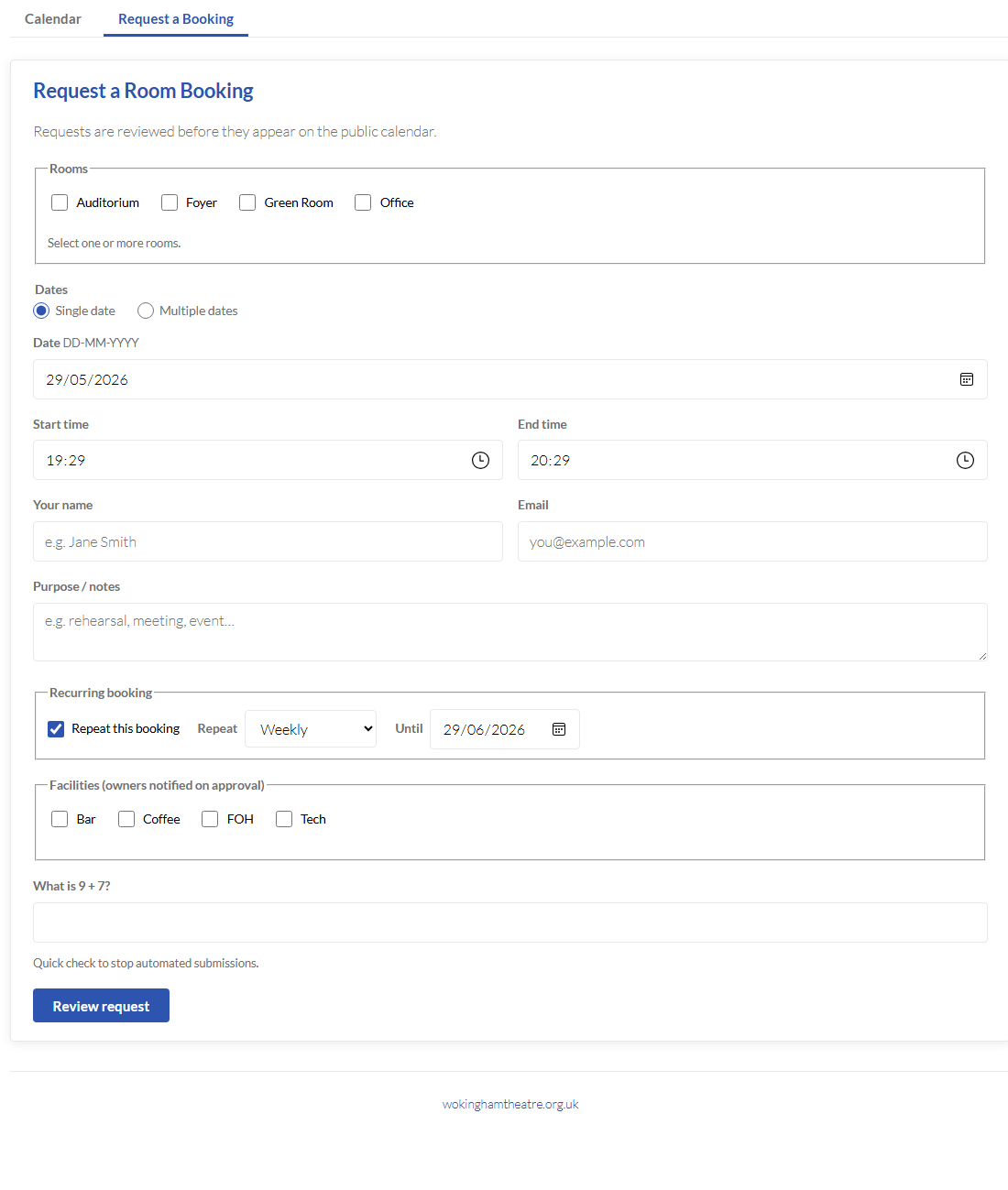
Optionally tick Repeat this booking (single-date mode only). Choose Weekly, Monthly, or Annually and an Until date — the theatre receives one request per occurrence in the series.
When you change the start time, the end time updates to one hour later automatically.
Tick facilities if needed (owners notified on approval).
Complete the security check and press Review request.
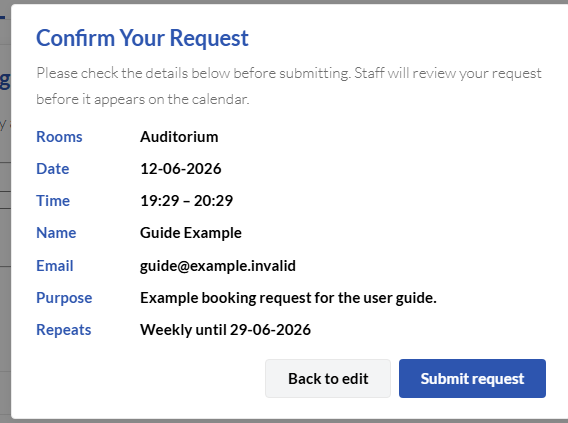
Check the summary in the confirmation window (including a Repeats line when recurring), then choose Back to edit or Submit request.
Request form with rooms, dates, and contact fields.
Request a booking form (with optional recurring booking).
Request form with Repeat this booking ticked and repeat options visible.
Repeat this booking — weekly, monthly, or annually until a chosen date.
Confirmation dialog with booking summary and Back to edit / Submit request buttons.
Review your details before submitting.
If your time clashes with an existing booking, the confirmation window will say so — try another room, date, or time. For a recurring request, if any date in the series would clash, the whole request is rejected.
5. After You Submit
You should see a success message on screen after you confirm submission.
You receive an email that your request was received.
If approved, you get a confirmation email and the booking appears on the calendar.
If declined, you receive an email with the reason staff entered.
Allow a little time for review — especially outside office hours.
6. Volunteer Rotas
Open Volunteer rotas from the top navigation or the link on the calendar home page. Grids only appear after theatre staff have released them for public sign-up. Choose the Tech or Front of house tab.
Tech Rota
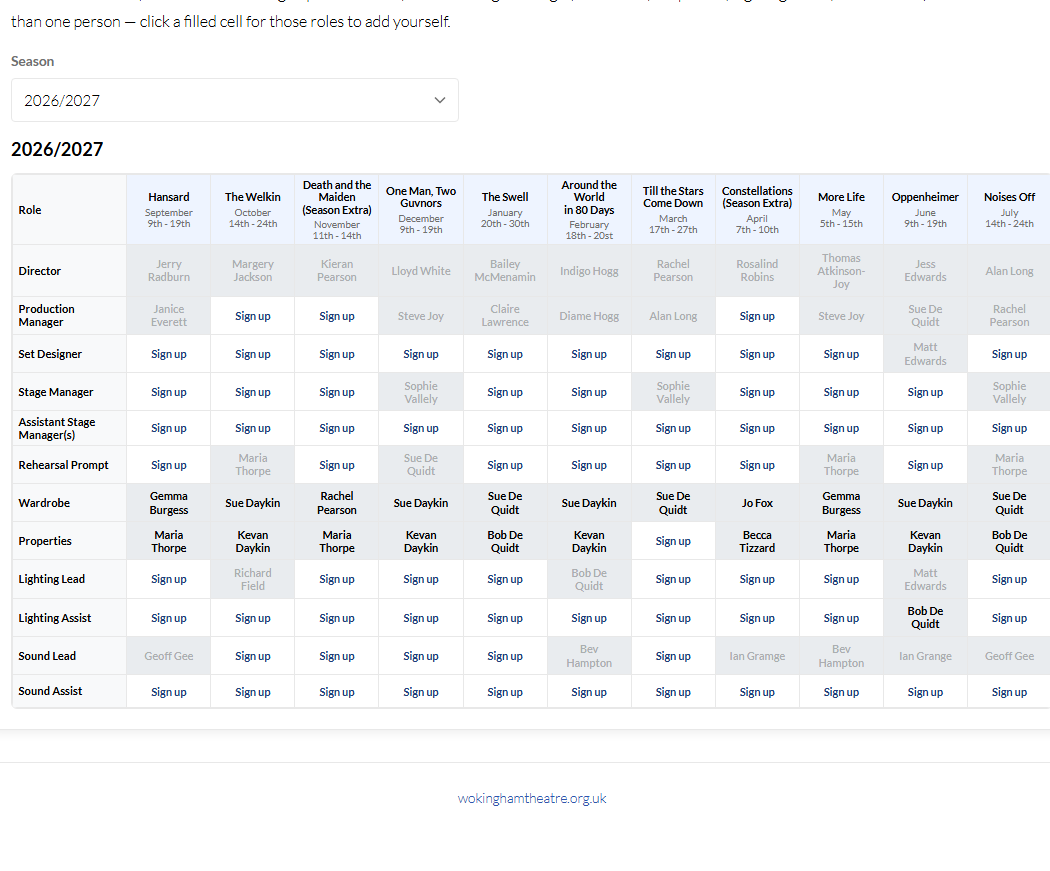
The Tech grid is a full season at a time. If more than one season is live, pick the season from the dropdown. Rows are roles (e.g. Sound Assist); columns are productions (e.g. Hansard), with run dates shown under each show name.
Click an open cell (shown as Sign up) for the role and show you want. If others have already expressed interest but no one is confirmed yet, the cell may show Express interest instead.
Some roles can have more than one person on the same show: Assistant Stage Manager(s), Wardrobe, Properties, Lighting Assist, and Sound Assist. If someone is already listed, you can still click that cell to add yourself (you cannot use the same email twice in one cell).
All other Tech roles allow one volunteer per cell. Until staff approve someone, several people can express interest for the same role — your name is not shown publicly while pending. Once someone is approved, that cell is filled.
Cells marked N/A are not needed for that show. After a show’s first performance date, that production’s column closes for public sign-ups automatically — only staff can assign people in admin.
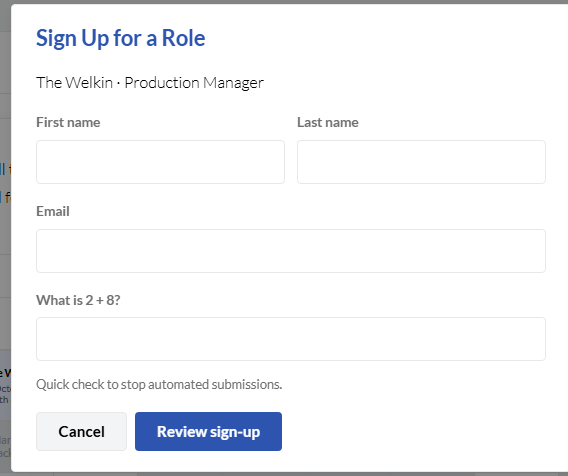
Enter your first name, last name, and email, complete the security check, then Review sign-up. On the confirmation screen you will see the season, show, run dates (when listed), role, and your contact details. The text will say whether staff must review your expression of interest, review your sign-up, or approve you automatically.
Public rotas page with Tech tab and season grid.
Tech season grid on the public rotas page (when released).
Rota sign-up dialog with name, email, and security check.
Sign-up form after choosing an open cell.
Front of House (FOH) Rota
FOH rotas are published one show at a time. If several shows are open, choose the production from the dropdown (staff may send you a direct link that opens this show automatically). The grid lists performance slots down the side (each evening in the run, plus any matinee the theatre has added) and FOH roles across the top.
Click an open cell for the performance date/time and role you want. If others have expressed interest but no one is confirmed yet, the cell may show Express interest.
Each FOH cell takes one person only. Until staff approve someone, several people can express interest for the same slot; once someone is approved, the cell is filled.
Confirm the show, date, assignment, name, and email before submitting.
After a production’s last performance, its FOH grid is removed from this page automatically — only current or upcoming shows stay listed.
After You Sign Up
If auto-approve is on for that rota (shown on the confirmation screen), you are approved immediately, receive a confirmation email, and your name appears on the live grid straight away.
If staff review is required, you receive email that your expression of interest or sign-up was received. Staff approve one person for single-volunteer slots (others are declined automatically) or approve multiple people on multi-volunteer Tech roles; you receive another email with the outcome (including a reason if declined).
While waiting for approval, your name is not shown on the public grid for single-volunteer roles. Other volunteers can still express interest for the same slot until someone is approved.
Some Tech roles allow more than one approved volunteer in the same cell; FOH and most Tech roles are one person per cell only.
If staff have paused public sign-ups, the grid may still be visible for information but cells are not open for sign-up.
7. Staff & Admin
Theatre staff sign in at Admin. Signed-in staff can open the admin user guide from the top navigation.
Wokingham Theatre — Room booking calendar. For booking enquiries, see wokinghamtheatre.org.uk.