How to approve requests, manage rooms, and use every admin feature.
1. Roles & What You Can Do
Your welcome email states your role. Tabs and settings you do not see are not available for your account.
Role
Typical access
Site Admin
Everything: users, rooms, facilities, public calendar options, PatronBase import, all bookings.
Room Admin
Bookings, calendar, rooms, PatronBase import. Not users or facilities.
Approver
Pending requests (only the queues ticked under Email notifications), calendar, bookings, show runs. Not rooms, PatronBase, or user management.
2. First Sign-In & Password
Open the admin link from your welcome email (usually /admin).
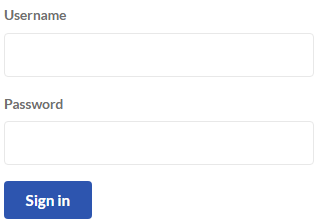
Enter your username and temporary password from the email.
You must set a new password first (at least 8 characters).
You then reach the main admin tabs.
Admin login — username, password, Sign in.
Admin sign-in page.
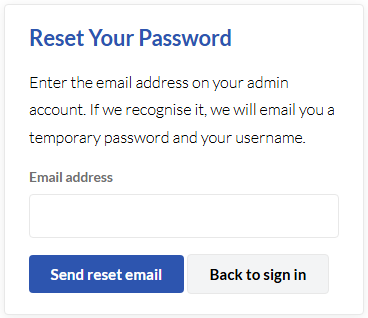
Reset password form with email field and Send reset email.
Forgot your password — enter your account email.
Forgot your password? On the sign-in page, choose Forgot your password?, enter the email address on your admin account, and press Send reset email. If that address is registered, you receive a new temporary password (same as when a Site Admin uses Reset password). The page always shows the same confirmation message whether or not the email was found.
Change your password anytime under Settings → My account.
3. Pending Requests
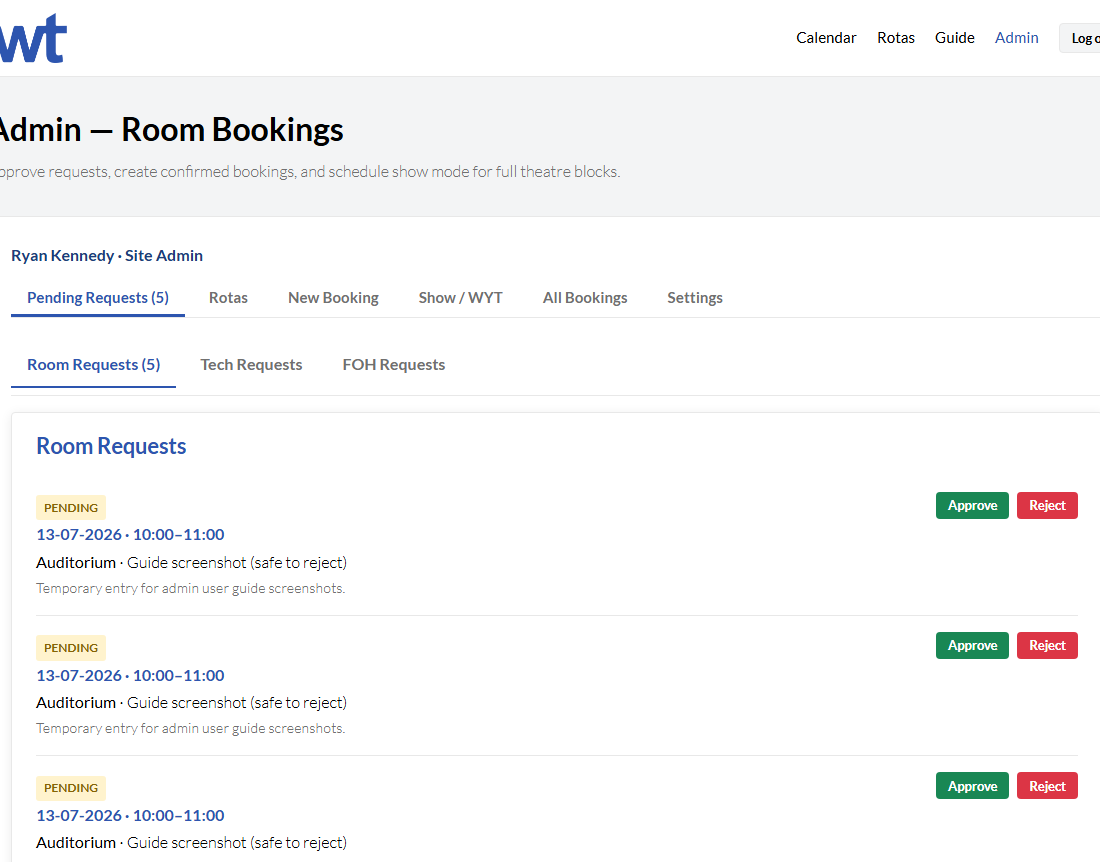
Open the Pending requests tab to review everything awaiting approval. The tab label shows the total count across the queues you can access. Three sub-tabs — Room requests, Tech requests, and FOH requests — each show their own count in brackets, e.g. Tech requests (2). Only the sub-tab you select is highlighted.
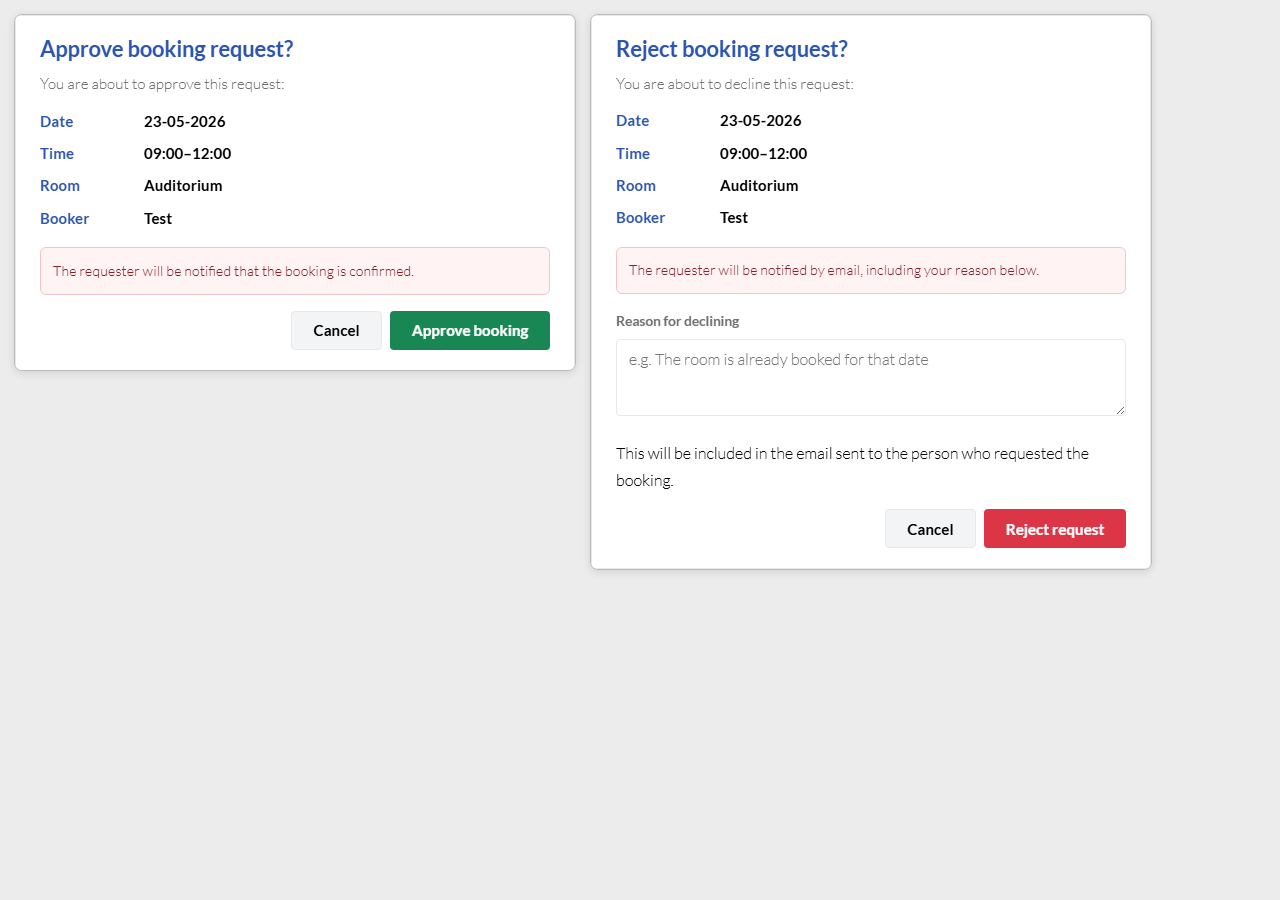
Room requests — public room booking requests. Approve or Reject (a reason is required on reject). The requester is emailed either way.
Tech requests — volunteer sign-ups for a released Tech season grid.
FOH requests — volunteer sign-ups for a released FOH show grid.
Rota sign-ups use the same approve/reject flow as room requests; volunteers receive email when approved or declined. Each request shows when the volunteer signed up (date and time).
Who Sees Which Queue
Site Admin and Room Admin see all three sub-tabs and can approve any queue.
Approver users only see sub-tabs that match their Email notifications (set under Settings → Admin users). For example, if only Tech rota approvals is ticked, they only see Tech requests here and only receive Tech alert emails.
If an Approver has no notification queues ticked, the Pending tab may be hidden or empty — a Site Admin should adjust their user record.
Rejected a room booking by mistake? Under All bookings, set Status to Rejected, open the booking, and use Re-approve.
Pending requests with Approve and Reject buttons.
Example pending request (your list will vary).
Approve and reject confirmation modals.
Confirmation before approve or reject.
4. Volunteer Rotas
The Rotas tab is for managing volunteer grids (not for approving sign-ups — use Pending requests for that, unless Auto-approve sign-ups is enabled on a grid). Volunteers sign up on the public rotas page only after you release a Tech season or FOH show. Use the Tech and Front of house sub-tabs.
How the Grids Work
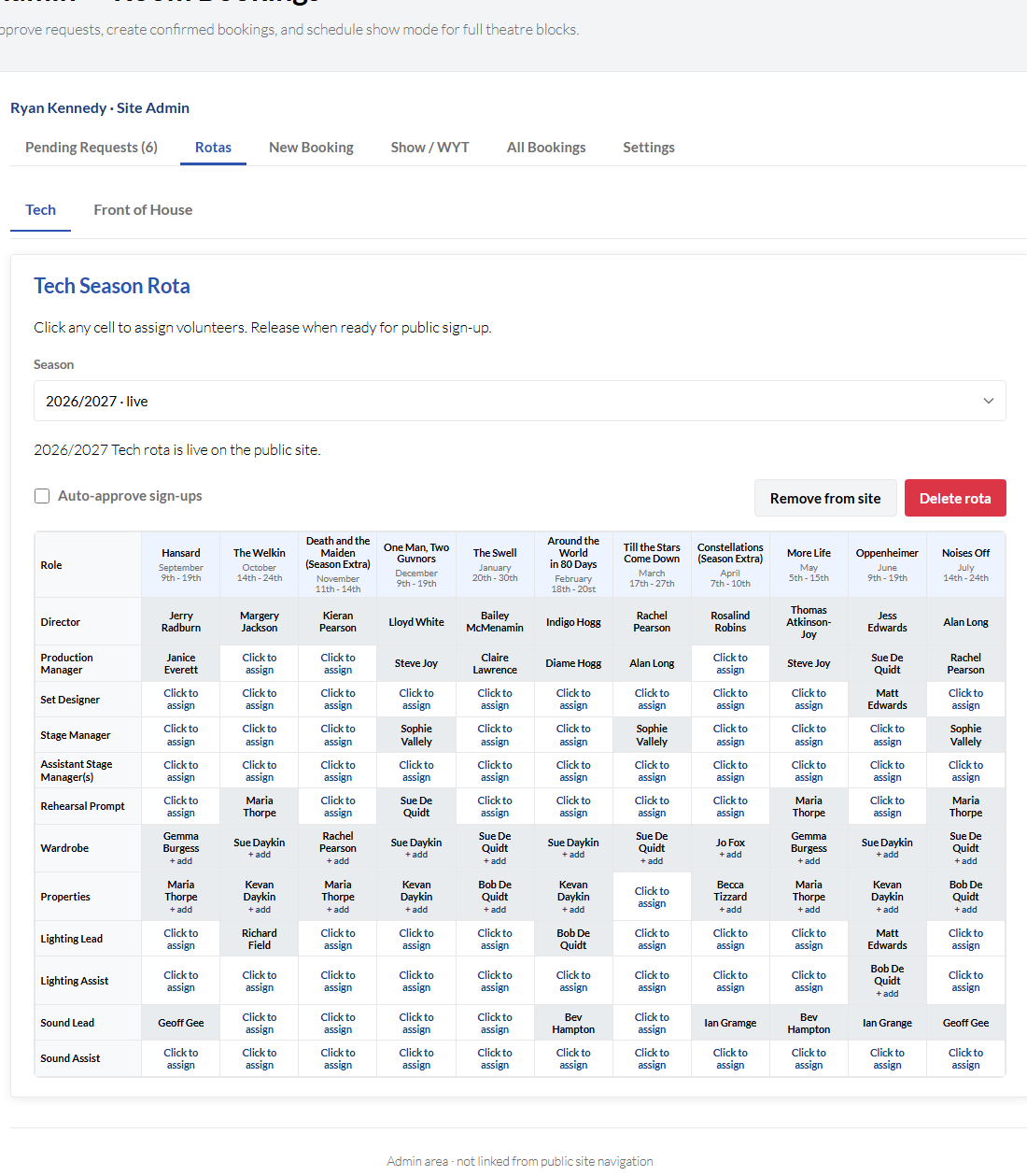
Tech — one spreadsheet-style grid per theatre season. Roles are rows; shows are columns (with run dates in the header). Creating a season builds an empty Tech grid; columns are added from approved show runs assigned to that season.
FOH — one grid per production. Performance dates are rows (one per evening in the run, plus an extra row for each matinee); FOH roles are columns. Grids are built from the calendar when you select a show.
Manage theatre seasons under Settings → Theatre seasons. When adding or editing a show run, choose its Season so it becomes a column on that season’s Tech rota. FOH grids use every performance slot on the show run (evenings and matinees).
Tech Season Rota
Select a season. A grid is created when you add the season (or when the first show run is assigned to it). Show columns appear from calendar show runs with that season.
Click any cell to assign or edit volunteers. For single-volunteer cells with public sign-ups, the dialog lists expressions of interest (pending volunteers) with sign-up date and time — use Approve to pick who gets the role; other pending volunteers on that cell are declined automatically. For roles that allow multiple people, the dialog lists everyone in the cell, with Add another person, Edit, Remove, or Clear all in cell.
Multi-volunteer Tech roles (same rules as the public site): Assistant Stage Manager(s), Wardrobe, Properties, Lighting Assist, Sound Assist. All other roles are one person per cell.
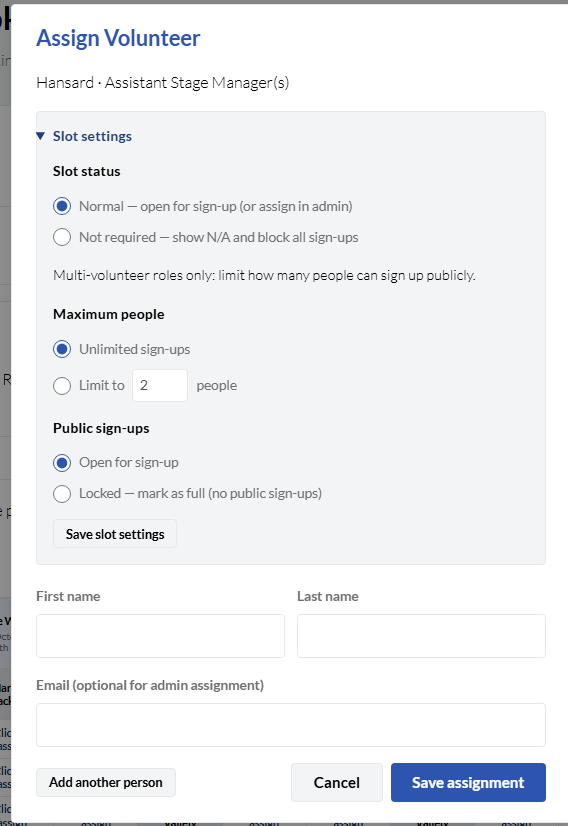
Slot settings — open any cell, then expand Slot settings at the top of the dialog. Use Not required to mark a cell as N/A (no sign-ups, no assignments). On multi-volunteer roles you can set a maximum people limit or lock the cell so the public cannot sign up (filled cells look like normal assignments — there is no separate “Full” label). Settings apply to that role for the whole show column on Tech, or to that single cell on FOH.
When a show’s first performance date has passed, public Tech sign-ups for that production’s column close automatically. A note appears in slot settings; you can still assign volunteers in admin.
Auto-approve sign-ups — toggle in the toolbar. When on, new public Tech sign-ups are approved immediately (they do not appear under Pending requests → Tech requests). Volunteers get an approval email straight away. Manual cell assignments in admin are always treated as approved.
Pause public sign-ups — toggle in the toolbar (when the season is live). The grid stays visible on the public site but volunteers cannot sign up or express interest — useful while you edit assignments without new volunteers joining.
Release for sign-up publishes that season on the public site. Remove from site hides it without deleting the grid. Delete rota removes the grid and all assignments (the season remains in Settings). More than one season can be live at once.
Status text shows whether the season is draft or live.
Admin Rotas tab with Tech grid, season selector, and release controls.
Tech season grid (example season).
Cell dialog with Slot settings expanded.
Slot settings: Not required, limits, lock, and show-started notice.
Front of House Rotas
Use Show, Search, and Filter (upcoming / live / draft / past / all) to find a production. Selecting a show linked to the calendar builds or opens its FOH grid automatically.
Refresh dates from calendar updates performance rows if the show’s dates, times, or matinees change on the show run.
Copy public link — copies a URL that opens the public rotas page on the FOH tab with this show pre-selected (handy for emails or social posts).
Click cells to assign one volunteer per slot (replace or clear as needed). Slot settings work the same way as Tech (including Not required / N/A).
Auto-approve sign-ups — toggle in the toolbar. When on, new public FOH sign-ups are approved immediately and skip the pending queue.
Pause public sign-ups — toggle in the toolbar (when the show is live). The grid stays visible on the public site but volunteers cannot sign up — useful while you edit without new volunteers joining.
Release for sign-up when volunteers may sign up. Remove from site hides the grid from the public page but keeps it in admin. Delete rota removes the grid and all assignments for that show.
After the show’s last performance night, a released FOH rota is removed from the public rotas page automatically (unpublished) if it is still live — you do not need to click Remove from site unless you want to hide it earlier. The grid stays in admin for past shows.
Unless auto-approve is on, new volunteer sign-ups appear under Pending requests → Tech requests or FOH requests (with sign-up date and time). On single-volunteer cells, several people can express interest until you approve one; the others are declined automatically. On multi-volunteer Tech roles you can approve more than one person in the same cell; all other Tech and FOH cells should have only one approved volunteer.
5. Admin Calendar
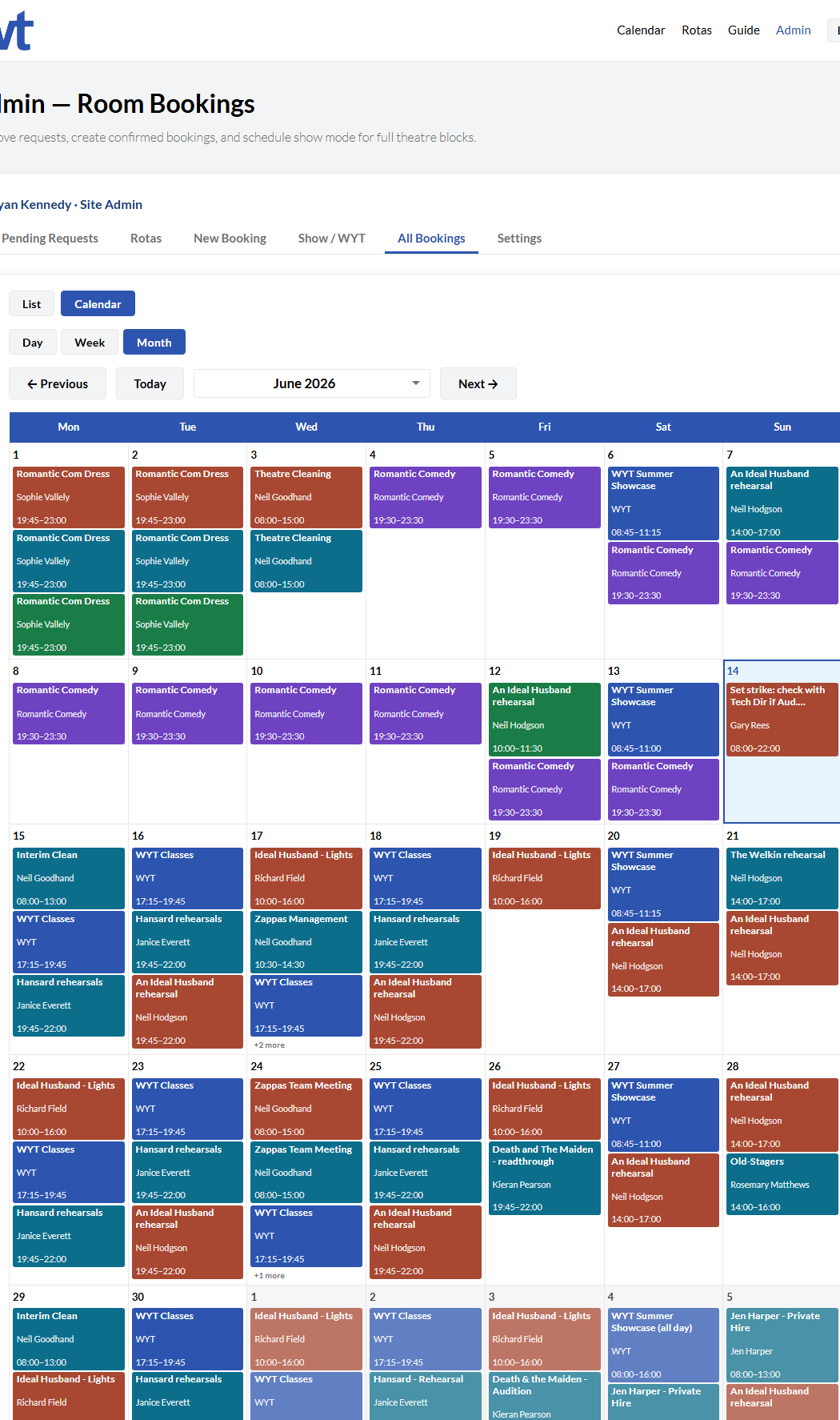
Under All bookings, switch to Calendar view for approved bookings and blocks in day, week, or month view.
Today jumps to the current period.
Previous / Next move through time.
Click an event to edit (if your role allows).
Colours identify the room or block type — see the table below.
Calendar colours
The public and admin calendars use the same colour key. Filter pills above the grid match the bubble colours.
Colour
Meaning
Rust · Auditorium
Main auditorium room bookings
Teal · Foyer
Foyer room bookings
Green · Green Room
Green room bookings
Slate grey · Office
Office bookings
Purple · Show
Approved show run — entire theatre (evenings and matinees)
Blue · WYT
Wokingham Youth Theatre — whole building
Bubbles show purpose (bold, up to two lines), then booker and time when set. The room or block type is conveyed by colour; hover for a summary tooltip.
Admin calendar month view.
Admin calendar — coloured bubbles by room and block type.
6. All Bookings
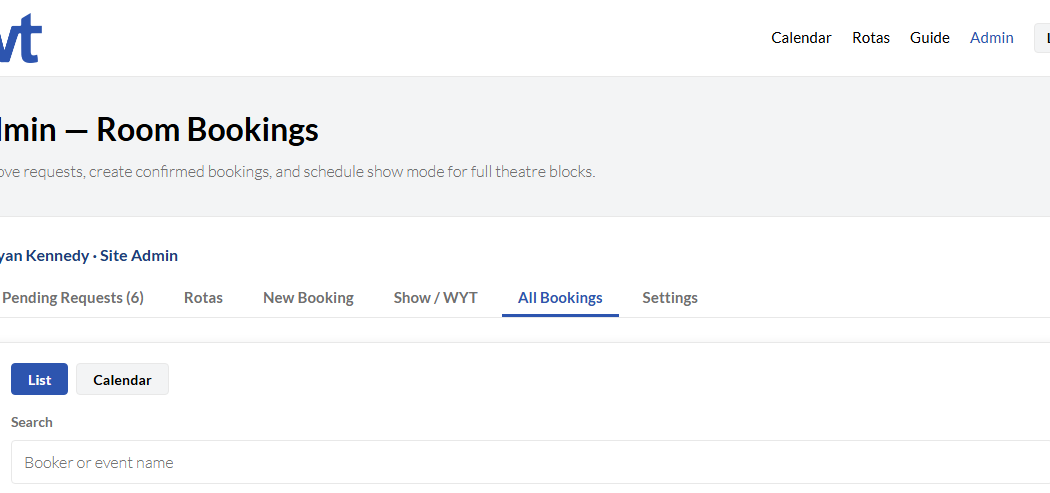
The All bookings tab lists bookings. With Status set to Active (the default), declined bookings are hidden — choose Rejected to see them. With no date filter, the list shows today and upcoming only; use the date fields, presets (This week, Next 30 days, etc.), or All dates to include past bookings.
Filter by room, date range, requester, Status (Active, Approved, Pending, or Rejected), facilities, or who approved.
Switch between List and Calendar view.
Click a row to edit; use Re-approve on rejected items to approve them again.
Recurring series show Recurring: and Group: on every occurrence in the list.
Related bookings (same submission, recurring series, or same time slot across rooms) can be edited or deleted as a group from the edit window — see section 8.
All bookings filters and search bar.
Search and filters (the list shows matching bookings only).
7. Create a Confirmed Booking
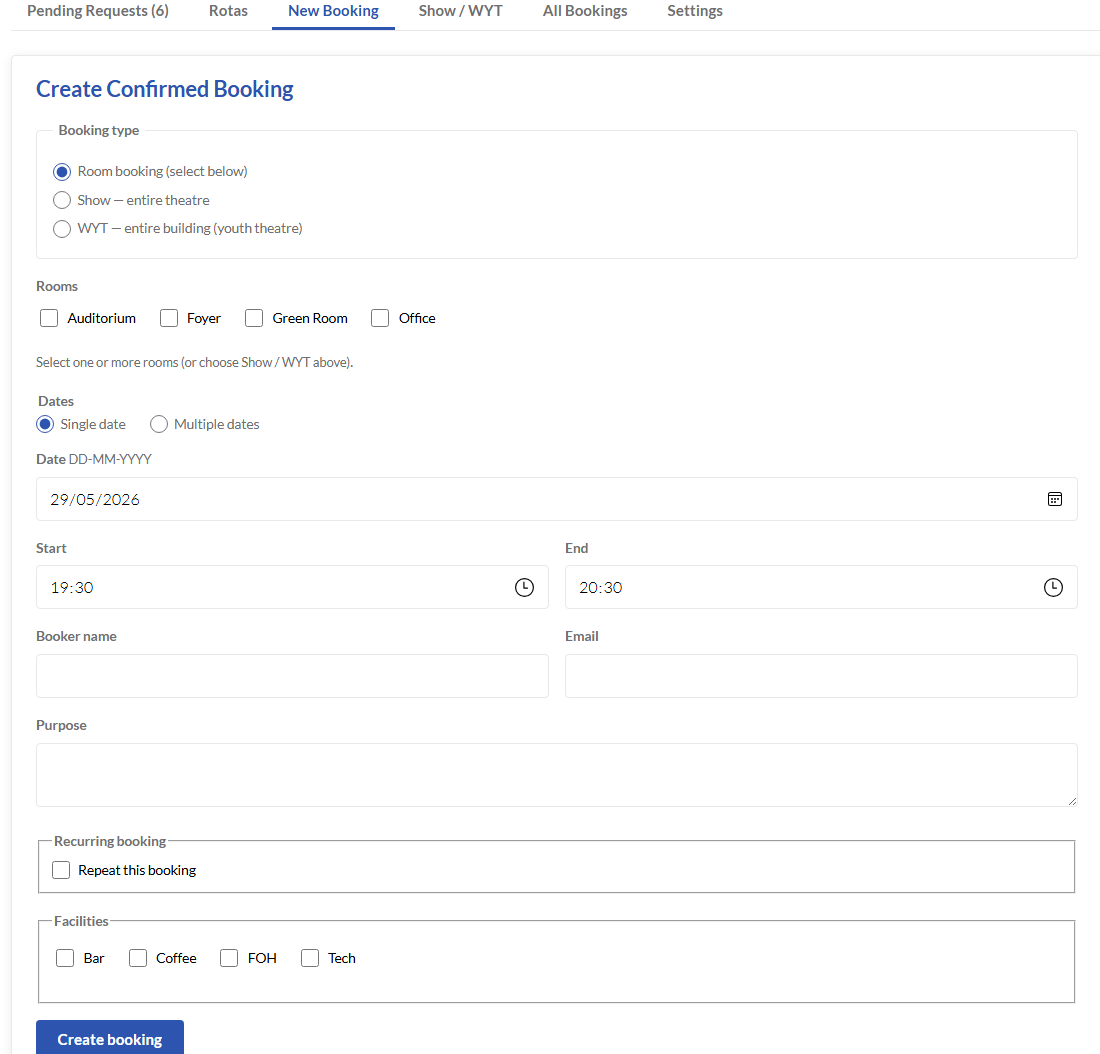
Use the New booking tab to add an already-approved booking (no public request step).
Choose single date, multiple dates, or a date range (multiple dates and recurrence cannot be combined).
Select room(s), times, booker name and email, purpose, and facilities if needed.
When you change the start time, the end time updates automatically to one hour later.
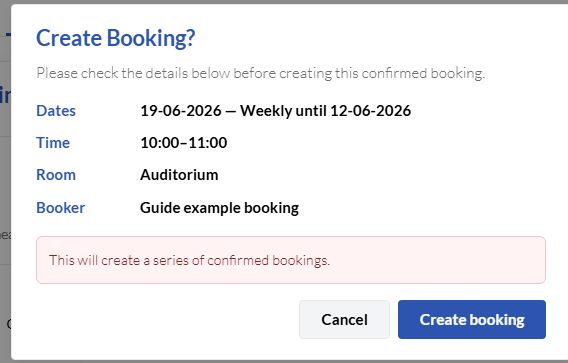
Press Create confirmed booking — a confirmation window summarises the details. If anything clashes with an existing booking, the error appears in that window.
Confirm — the booking(s) appear on the calendar immediately.
Create booking form.
New booking form.
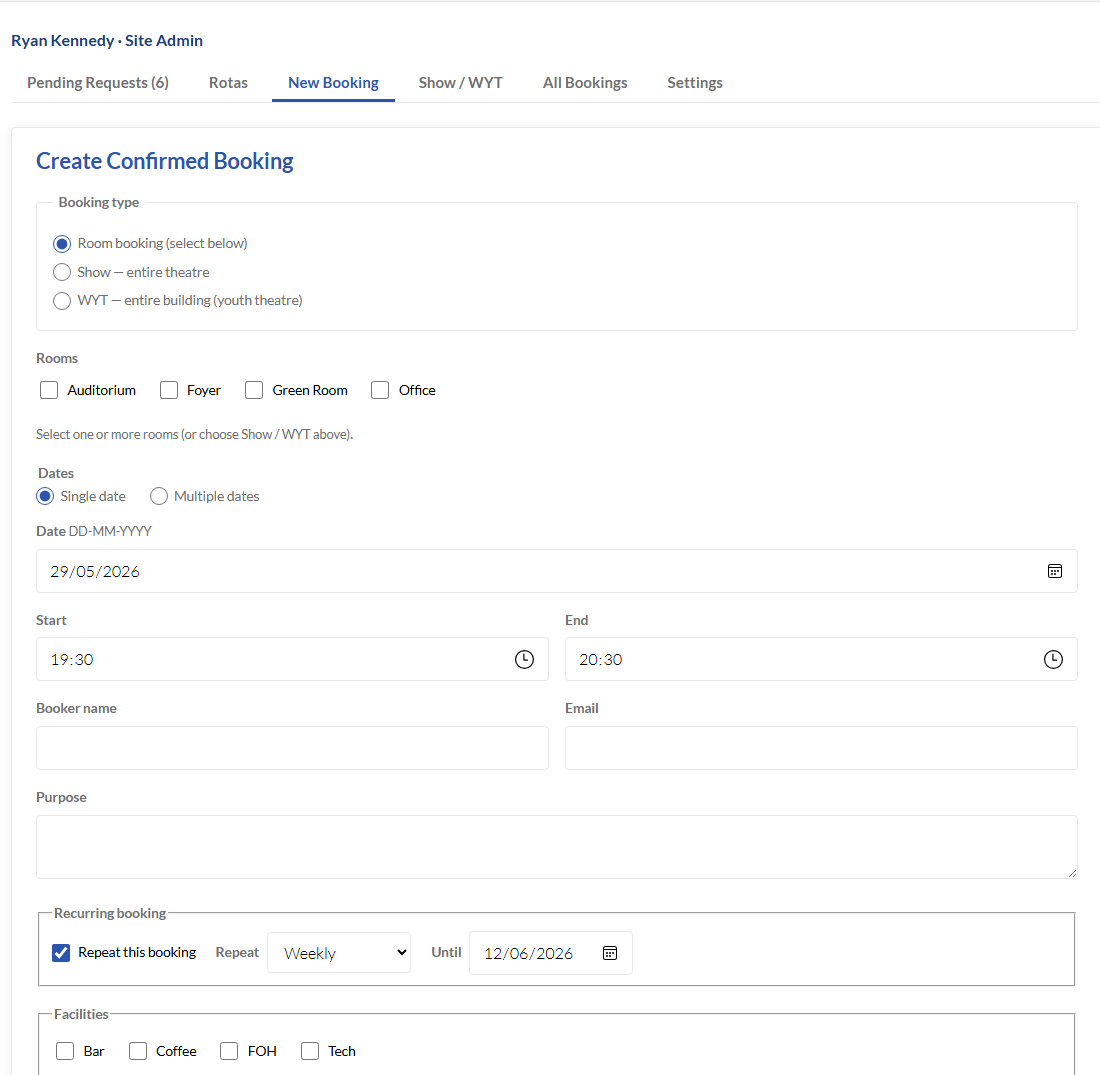
New booking form with Repeat this booking ticked.
Optional recurring booking (room bookings only — not Show / WYT).
Confirmation dialog before creating a booking.
Review details before creating — conflicts are shown here.
8. Recurring Bookings
Recurring bookings create one calendar row per occurrence (weekly, monthly, or annually until an end date). Each row is approved individually on the calendar but linked as a series so you can update or remove them together.
Creating a series
On New booking, tick Repeat this booking (after Purpose / notes). Choose Weekly, Monthly, or Annually and a Until date on or after the first date.
Visitors can do the same on the public Request a booking form (single date only) — staff approve or reject each occurrence in the series.
Show / WYT whole-building blocks cannot recur.
If any occurrence would clash with an existing booking, nothing in that series is created and you see an error naming the problem date.
Editing a series
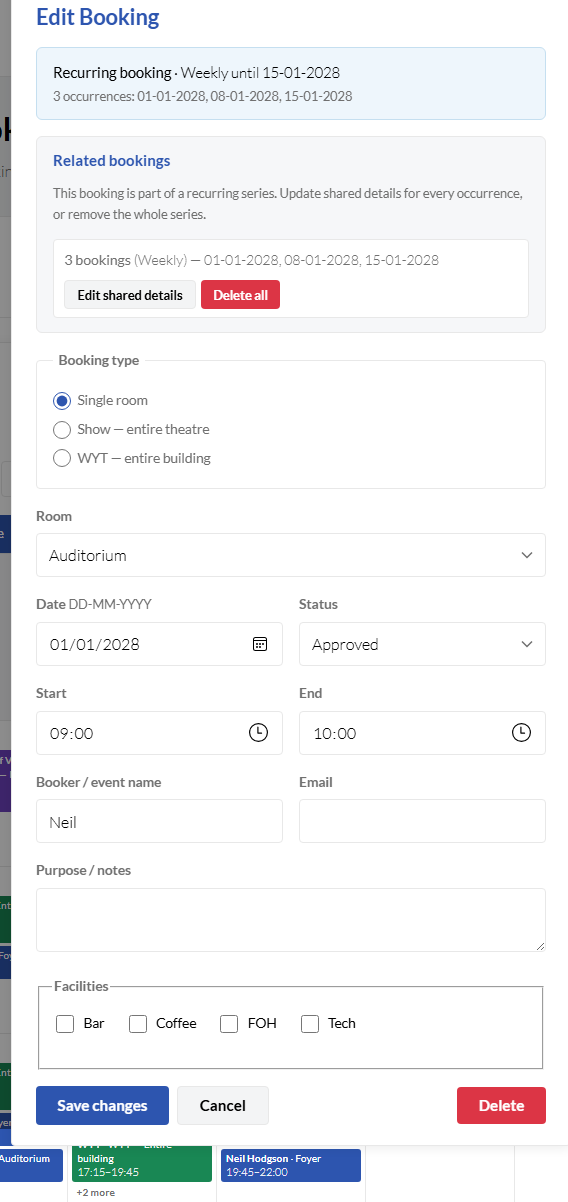
Open any occurrence from All bookings or the admin calendar. The edit window shows:
A blue Recurring booking banner — repeat pattern, until date, and all dates in the series.
A Related bookings panel with Edit shared details and Delete all.
Edit shared details updates every occurrence at once: start/end time, booker name and email, purpose, facilities, and status. It does not change individual dates or rooms — use the main edit form on a single row for that. To change one occurrence only (time, date, room, etc.), save changes in the main form without using group edit.
Edit booking modal with Recurring booking banner and Edit shared details.
Recurring banner and related bookings on every occurrence in the series.
A series with only one date (e.g. weekly until the same day as the start) still shows the recurring banner and group actions — useful if you extend the series later by creating a new recurring booking.
9. Show Runs & Theatre Blocks
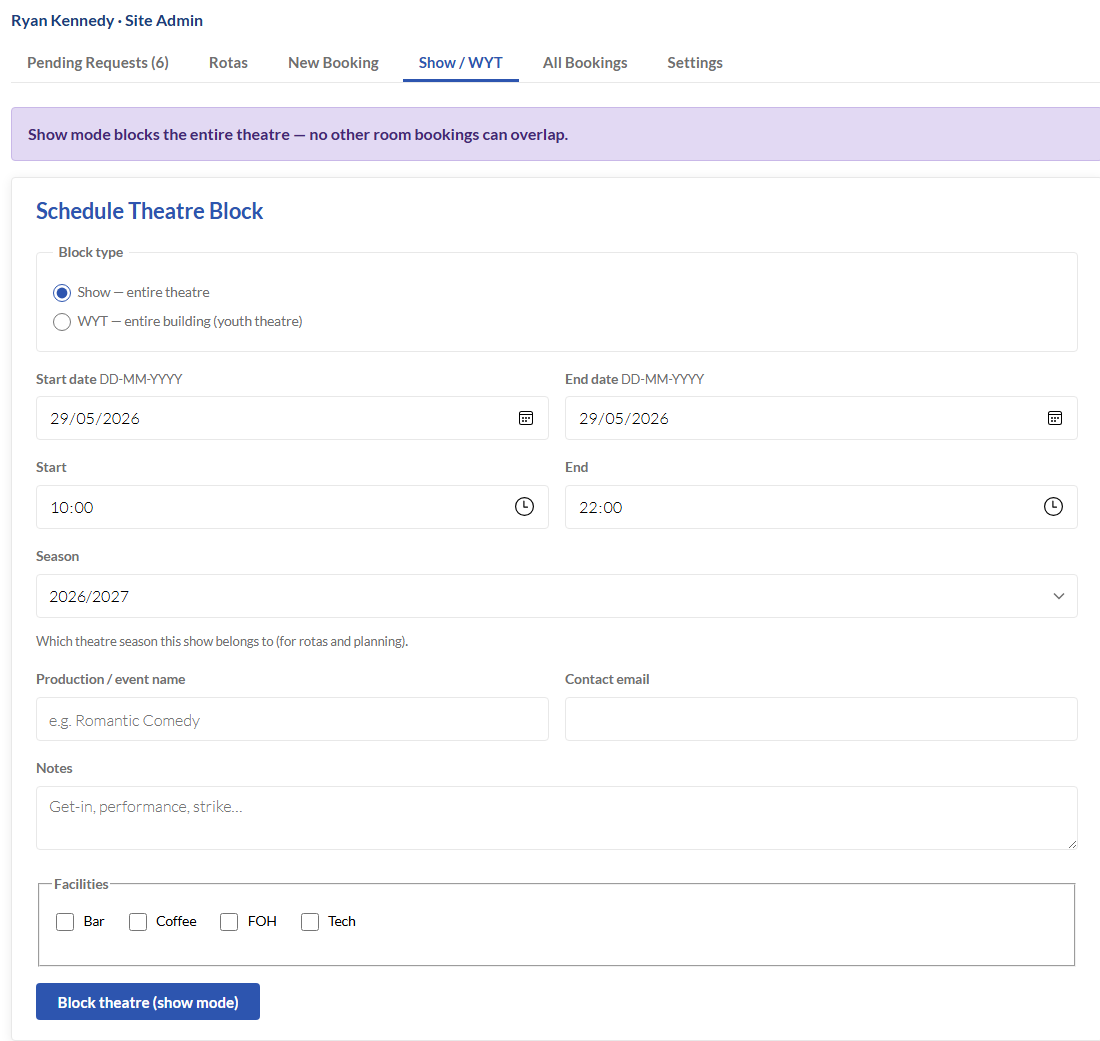
The Show / WYT tab schedules full-theatre or whole-building blocks.
Show mode — entire theatre for a production. Choose a Season (required) so the production appears as a column on that season’s Tech rota when the show is approved.
WYT mode — whole building for youth theatre (no rotas or matinees).
Default performance times are 19:30–23:30 for each day between the start and end dates. When you change the start date, the end date follows if it was still the same as the previous start (typical single-day booking); extend the end date manually for a multi-day run.
Facility owners are notified when facilities are ticked.
You can add a new season from the show form via + Add new season… without leaving the page.
Matinee performances (Show mode only)
Expand Additional settings on the show form (or when editing a show run). Under Matinee performances, use Add matinee for extra performances within the run — for example a Saturday afternoon before the usual evening show.
Each day in the date range still gets the default evening slot (start/end times on the main form).
Each matinee adds its own date and start/end times within the run. New matinees default to the show start date; matinee dates must stay between the run’s start and end dates.
Each matinee appears as a separate entry on the admin calendar and blocks the theatre for that slot (conflict checks apply).
Each matinee adds an extra row on the production’s FOH rota for that date and time. Tech rotas stay one column per show — matinees do not add a second Tech column.
Matinees are part of the show run, not separate show-mode bookings. After changing dates or matinees, use Rotas → Front of house → Refresh dates from calendar if an FOH grid already exists.
Additional settings (Show mode only)
Include on Tech rota and Include on FOH rota are ticked by default. Turn them off for hires or events that should appear on the calendar but not on volunteer rotas.
When both are on, saving an approved show run creates or updates the Tech season column and the FOH grid (same as before matinees were added).
Show run booking form.
Show / WYT block form (open Additional settings for matinees and rota options).
10. Settings
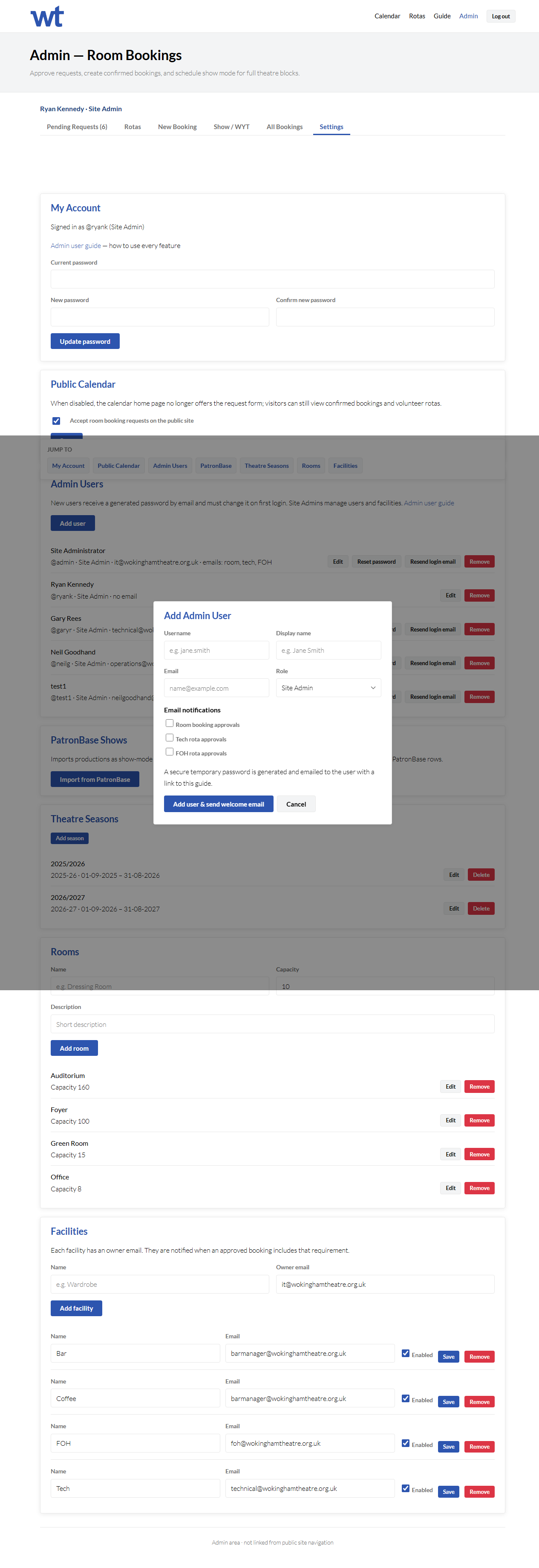
Open Settings from the tab bar. Use the jump links at the top to move between sections.
My Account (Everyone)
Update your password. This guide is linked from the admin header when you are signed in.
Public Calendar (Site Admin Only)
Under Settings → Public calendar, control whether visitors can submit room booking requests from the calendar home page (/).
Accept room booking requests on the public site (ticked) — the home page shows the Request a booking tab and the usual text inviting people to submit a request.
Unticked — the request tab is hidden, the home page hero shows a link to volunteer rotas only, and the public request form cannot be submitted (staff can still add confirmed bookings under New booking). The calendar and rotas pages are unchanged.
Settings — Public calendar checkbox and Save.
Public calendar setting (Site Admin).
Admin Users (Site Admin Only)
Click Add user for the form (username, display name, email, role). A temporary password is emailed automatically; they must change it on first login. Under Email notifications, tick any combination of Room booking approvals, Tech rota approvals, and FOH rota approvals — this controls which alert emails they receive and which Pending requests sub-tabs they can see (for Approver role). Use Resend login email or Reset password when needed.
Admin users with Add user button.
Add user dialog (example).
Rooms (Site Admin & Room Admin)
Add, edit, or remove rooms. A room with existing bookings cannot be removed until those bookings are cleared.
Theatre Seasons (Site Admin & Room Admin)
Under Settings → Theatre seasons, add or edit seasons with a label and start/end dates (typically September–August). Adding a season creates its Tech rota grid immediately with standard role rows; show columns are added when approved show runs are assigned to that season.
Each season has an internal id from the start year (e.g. 2027-28 for 2027/2028).
You cannot delete a season while show runs still use it. If only an empty Tech grid remains, deleting the season can remove that grid too (you will be asked to confirm).
To remove a Tech grid but keep the season, use Rotas → Tech → Delete rota for that season.
Facilities (Site Admin Only)
Bar, coffee, FOH, tech, etc. Each has an owner email notified when an approved booking needs that facility.
Import productions from PatronBase under Settings → PatronBase shows (not on the main tab bar). Imports create approved show mode blocks (theatre 19:30–23:30 with facilities selected). Assign each import to the correct Season on the show run if needed for the Tech rota.
Wokingham Theatre — Room booking calendar. Visitors can read the public calendar guide. For access issues, contact your Site Admin.